Showing posts with label windows. Show all posts

Saturday, June 10, 2017

X11 forwarding using Xming X server for Windows

Problem statement:

Let's say, We have 2 two computers: One with Ubuntu OS and other with Windows OS
Through SSH connection, "How can we access the any application's interface (GUI) installed on Ubuntu computer from Windows computer ?". For example, we want to access the GUI of calculator application that is installed on Ubuntu from Windows computer.

Environment:

First computer:
                       OS- Ubuntu 14.04 64-bit
                       Openssh-server package
Second computer:
                       OS- Windows 8 64bit
                        Xming software tool

Here, for demonstration, we will open GUI of calculator application
The command to open the calculator in Ubuntu is gnome-calculator                      

Step-1:
On Ubuntu Computer, install openssh-server package.

Perform Step-2 to 5 on Windows computer.
Step-2:
On Windows computer: 
Download Xming for Windows 8 64bit.
Install Xming executable file. You don't have to do any changes. Leave everything to the default selection.

Step-3: 
Now open command prompt on Windows computer
Change the directory to the location where Xming is installed. In my case it is "C:\Program Files (x86)\Xming"


cd "c:\Program Files (x86)\Xming"

Step-4:
Now enter the following command to start Xming on Windows


Xming.exe -multiwindow -clipboard


Step-5:
Now its the time to connect to the Ubuntu computer through inbuilt putty. In this step, you need to provide the login information, and the command to open required application.

The command can be

plink -ssh -2 -X user1@<IP of ubuntu computer> -P <port number of SSH server> <command to open the required application>


e.g.

plink -ssh -2 -X chinmaya@120.162.56.85  -P 23 gnome-calculator


Here, I am connecting to the Ubuntu computer through ssh protocol 2.
The IP address and SSH port number of Ubuntu computer is 120.162.56.85 and 23, respectively.
gnome-calculator is the command to open the GUI of calculator application.

After entering the above command, you need to give the corresponding password. If all goes well, the required GUI will appear on Wondows computer.

Please comment if you need more information or if you have any suggestion.

-Thank you


Friday, May 12, 2017

Fixing WinEdit MDI event handler macros error.

Environment
     OS: Windows 7 32bit
     WinEdit v5.4 (build: 20050201)

Error :


Possible Reason: 
     Either the path mentioned is wrong OR the macro file "MDIOpen.edt" is accidentally deleted.

How to Fix this Issue?
 Follow below steps

1.  Open WinEdit 5.4 program.
2.  Go to "Options" menu and select "Preferences" submenu.
3.  Click on "MDI Events" tab.

4.  Now check all four paths. The directory of all files (MDIOpen-Before.edt, MDIOpen.edt, MDIActivate.edt and MDISave.edt) must be same.

Here %b represent "C:\Program Files\WinEdt Team\WinEdt" path.
Now let's check two directories:
                 First  "C:\Program Files\WinEdt Team\WinEdt\Macros"
                 Second: "C:\Program Files\WinEdt Team\WinEdt\Macros\Events"

First Directory  "C:\Program Files\WinEdt Team\WinEdt\Macros ": 

Second Directory: "C:\Program Files\WinEdt Team\WinEdt\Macros\Events"


Now it is clear that the path in  MDI Events preference is WRONG.

5. Change the path from "[Exe("%b\Macros\MDIOpen.edt");]"  to "[Exe("%b\Macros\Events\MDIOpen.edt");]".


6. Now, restart the WinEdit program. Hope the error is fixed.

Let me know in the comment section if the error is NOT fixed.

-Thank you


Thursday, November 24, 2016

Installing Anaconda in Windows OS.


Step 1: Download
First step is to download the latest version of Anaconda for Windows OS.

For Windows 64bit (Python 3.5): https://repo.continuum.io/archive/Anaconda3-4.2.0-Windows-x86_64.exe
For Windows 32bit (Python 3.5):  https://repo.continuum.io/archive/Anaconda3-4.2.0-Windows-x86.exe

For Windows 64bit (Python 2.7): https://repo.continuum.io/archive/Anaconda2-4.2.0-Windows-x86_64.exe
For Windows 32bit (Python 2.7):  https://repo.continuum.io/archive/Anaconda2-4.2.0-Windows-x86.exe

You can also download from official link https://www.continuum.io/downloads.

Step 2 : Install
Install Anaconda 3.5 (Python 3.5)
  1. Double click on the downloaded file.
  2. Follow the wizard.
  3. Select "Just me..." option, and click on "Next" button.
  4. In the "Advanced Installation Options", please make sure that "Add Anaconda to my PATH...." and "Register Anaconda....."  options are checked.
  5. now just follow the wizard and finish the installation process.

Step 3: Verify the installation
Open command prompt
Enter following command
 conda --version

Thursday, October 20, 2016

Accessing remote printer [Fuji Xerox DocuPrint m215b]

In this post we will see, how to access a shared remote printer. Below picture describes the concern environment.


Let's say you as the user want to access the printer attached to another computer which is connected to internet. Its assume that the printer is already shared. So this post is all about configuring the user's computer to access the remote printer.

Environment :

OS: Windows 8 (The steps may vary slightly in other versions of Windows)
Printer Driver: In this demonstration Fuji Xerox DocuPrint m215b is used.
                           Driver for Windows 64bit  OS
                            (Compatible OS: Windows 7, Windows 10, Windows Server 2003, Windows Server 2003 64bit, Windows Vista, Windows Vista 64bit, Windows Server 2008, Windows Server 2008 64bit, Windows Server 2008 R2, Windows 7 64bit, Windows 8, Windows 8 64bit, Windows 8.1, Windows 8.1 64bit, Windows Server 2012, Windows Server 2012 R2, Windows 10 64bit )
                             (Click here to download the driver from official website)


 Driver Installation steps


Step1:  Download the Printer driver
Step 2: Now extract the content of the downloaded driver. Open the newly created Folder.

Step 3: Right click on the application and click on "Run As Administrator"

Step 4: Click on Unzip

Step 5: Now you will see another folder. Now close the dialog box and open the newly created folder.

Step 6 :  Now run the "install" application by double clicking on it.

Step 7:  Select "Personal installation" radio button and click on next button.

Step 8:  Click on "next" button after accepting the license agreement.

Step 9: Now wait for few mins

Step 10 : Click on "Finish" button to finish the installation process.


Adding Remote printer


Step 1: Open the control panel, and click on "Devices and Printers"

Step 2:  Click on "Add a printer"

Step 3:  Wait for auto search. Or you can click on "The printer that I want isn't listed"

Step 4:  Give the printer name (including computer name) and click on "Next" button.

Step 5:  You must see the printer name. Click on "Next" button.

Step 6: Click on "Print a test page" to check the accessibility of the printer. click "Finish" button to finish the configuration process.


That's all for now...Please comment if you encounter any problem.

-Thank you


Thursday, October 6, 2016

Installing OpenCV and Python in Windows


1. Download and install Python 2.7.x in windows
             windows install : http://python.org/ftp/python/2.7.5/python-2.7.5.msi
2.  The default installation directory C:\Python27


3. Download and install python package manager pip if NOT installed
                  A. Download get-pip.py script from  https://bootstrap.pypa.io/get-pip.py
                  B. Open command prompt
                  C. Enter following command to run the downloaded script
                                    python <path to get-pip.py file>

4.  Go to http://www.lfd.uci.edu/~gohlke/pythonlibs/ to download and install python packages

5.  Now, Download Numpy python package (choose the .whl file based on your requirement)
                  A. Open command prompt
                  B. Go to the local directory where numpy-1.11.2+mkl*.whl file is present
                  C. Enter following command to Install Numpy
                                    pip install numpy-1.11.2*.whl
6. You can repeat Step-5 to install other required packages


7. Download and install OpenCV
                  A. Folllow the link to download OpenCV-3.1.0
                  B. Open the .exe file to install (in C drive)
                  C. Goto C:\opencv\build\python
                  D. Copy cv2.d to C:\Python27\Lib\site-packages

Please comment if you encounter any error....

-Thank you 

Friday, June 17, 2016

Accessing Linux (Ubuntu) account remotely through SSH

Its easy to access your linux account exactly sitting in-front of the personal computer. But how about accessing your linux account from another place which is far from the personal computer. Follow below steps to access your linux account.
Definition
Target Computer: the computer to which you want to connect or we can say your personal computer. <refer figure 1>
Source Computer: The computer from which you want to access your target computer. <refer figure 1>
Figure 1: Accessing target Computer from Source computer


Requirement:
    1. Target computer must be turned ON

    2. Target computer must have internet connection
        or
        Source computer must be accessible from target computer through LAN, WAN or in anyway.

    3. Software requirement for Source Computer :
        Putty: which can be downloaded from below link
        For windows: http://tartarus.org/~simon/putty-snapshots/x86/putty.exe
        For Mac & Ubuntu : Use “Terminal” . // No third party software is required
       
    4. Software requirement for Target Computer :
        openssh-server : openssh-server must be install on your personal computer to accept the connection from another computer present remotely

Steps: 

For Target Computer
  1. We assume that Ubuntu is installed on target computer
  2. Install openssh-server by executing below command in the “Terminal”
sudo apt-get install openssh-server
      3. follow below link to configure the openssh-server
               http://blogchinmaya.blogspot.com/2016/06/configure-openssh-server-in-ubuntu.html

For Source Computer

For Windows

    S1: download and install Putty for windows from below link.
    S2: Open putty
Figure 2: Putty in Windows


    S3: Here, it needs 2 main information.
         S3.1: Enter the address of the target computer
         S3.2: Enter the ssh port number on target computer
    S4: Select "SSH" radion option
    S5: now click on "Open" button to connect to the target computer
Figure 3: Putty Login window 
     S6: Now enter your username and password

For Mac & Linux (ubuntu)

    S1: open Terminal (FOR MAC)
         S1.1 : press <command> + <Space> 
         S1.2 : search for “terminal”

Figure 4: Open terminal in mac
    S1: Open Terminal (for Ubuntu)
         You can open the trminal by pressing < ctrl > + < alt > + < t > 

    S2: gather following information
           S2.1: Account name and password in target computer
           S2.2: address of the target address
           S2.3: port, on which ssh server is running on the target computer
    S3: enter following command in terminal
ssh <username>@<address> -p <port number>
           Now enter your password
e.g.


Thats all, its done. Now you can browse the your filesystem using common linux command.

Thursday, May 14, 2015

LaTeX : Part - 4 : Examples of Mathematical equations - Advance.

In previous post, we have discussed the basic to write a mathematical equation. In following section we will be discussing on some advance equations.

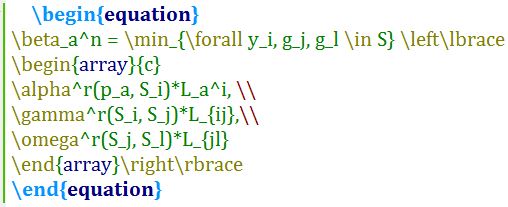
Some samples on advanced mathematical equation:

Source Code Output
 

Some more to come Some more to come